
Eduroam Connection Settings for macOS
1- First, connect via a wired network or another wireless network and download the file from this link:
Eduroam for Mac OS (Right-click and save the file)
A profile file will run and ask if you want to install it. Click the Continue button.
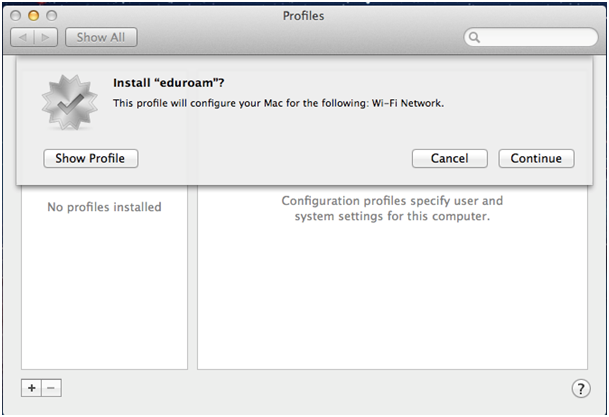
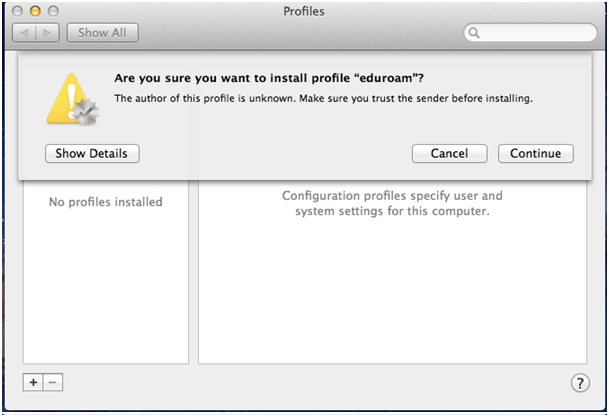
2- In the next step, it will ask if you are sure. Click the button that says Continue again.
3- Finally, in the window that appears, enter the username and password for your institutional email address with the extension “@ozal.edu.tr” and click the Install button. By following these steps, you can successfully establish your connection.